MCP integration
Connect AEOify to your AI tools using the Model Context Protocol (MCP) for direct access to reports and recommendations.
What MCP integration does
The MCP integration lets your AI-powered tools access AEOify directly. You can list reports, fetch recommendations, and trigger new scans from any tool that supports the Model Context Protocol.
Setting up the connection
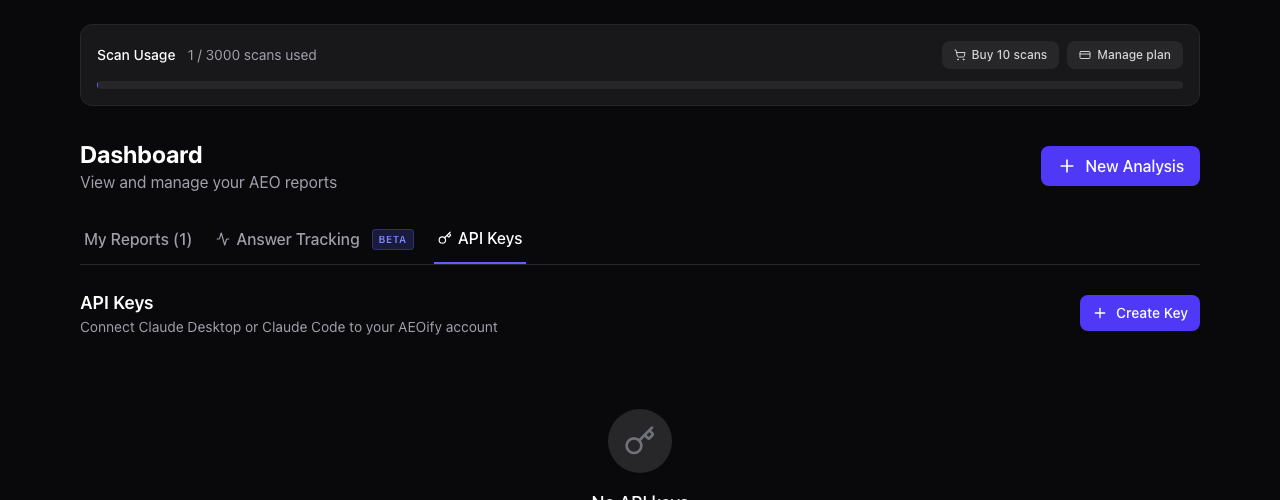
- Create an API key in your dashboard. See API keys for instructions.
- Configure your MCP client with the AEOify server URL and your API key.
- Test the connection by listing your reports.
Server configuration
Add AEOify to your MCP client configuration:
Server URL: https://www.aeoify.com/api/mcp
Authentication: Bearer token (your API key)
Available tools
Once connected, the following tools are available:
| Tool | Description |
|---|---|
| list_reports | List all your AEO reports |
| get_report | Fetch a full report by ID or share token |
| get_recommendations | Get filtered recommendations from a report |
| create_report | Trigger a new scan for a URL |
Filtering recommendations
The get_recommendations tool supports filters for category (quick-wins, high-impact, medium-impact, long-term), impact level (high, medium, low), and effort level (high, medium, low). This helps you focus on exactly the type of fixes you want to work on.
Requirements
- An active AEOify subscription
- An API key (see API keys)
- An MCP-compatible client application
- Does using MCP count against my scan limit?
- Only the create_report tool uses a scan. Listing and viewing existing reports does not count.
- Can I use MCP with any AI tool?
- Any tool that supports the Model Context Protocol can connect to AEOify. Check your tool's documentation for MCP client support.