Scheduled scans
Re-scan your site automatically on a recurring cadence and email co-branded reports to your team or clients.
Scheduled scans re-analyze your site automatically on a recurring cadence, so you never have to remember to rescan. After each scan, AEOify can email the finished report to a list of recipients you choose.
Is scheduled scanning included in my plan?
Scheduled scans are a Premium feature. The Scheduled Scans tab is visible to everyone, but if you are not on a Premium plan you will see an Upgrade to Premium card instead of the schedule form. See choosing a plan to compare plans.
Creating a scheduled scan
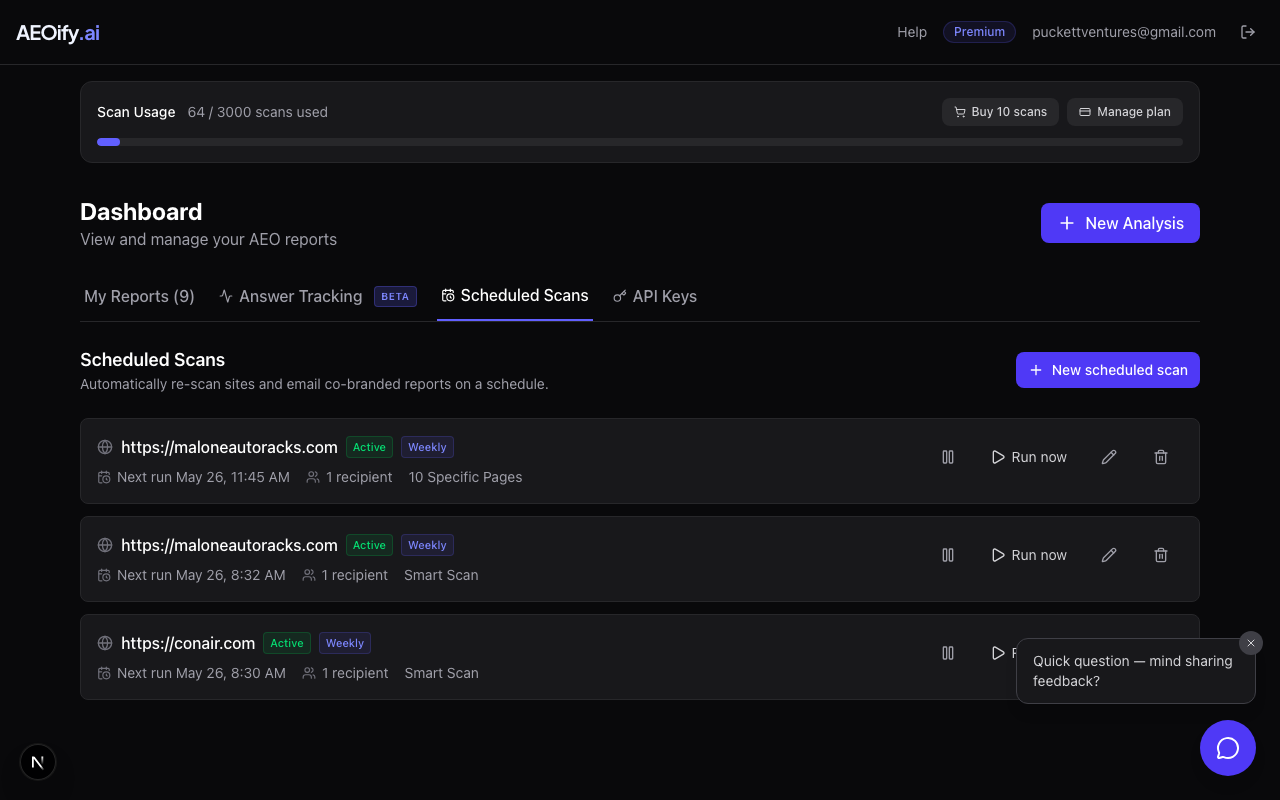
- Sign in and go to your dashboard.
- Click the Scheduled Scans tab.
- Click New Schedule.
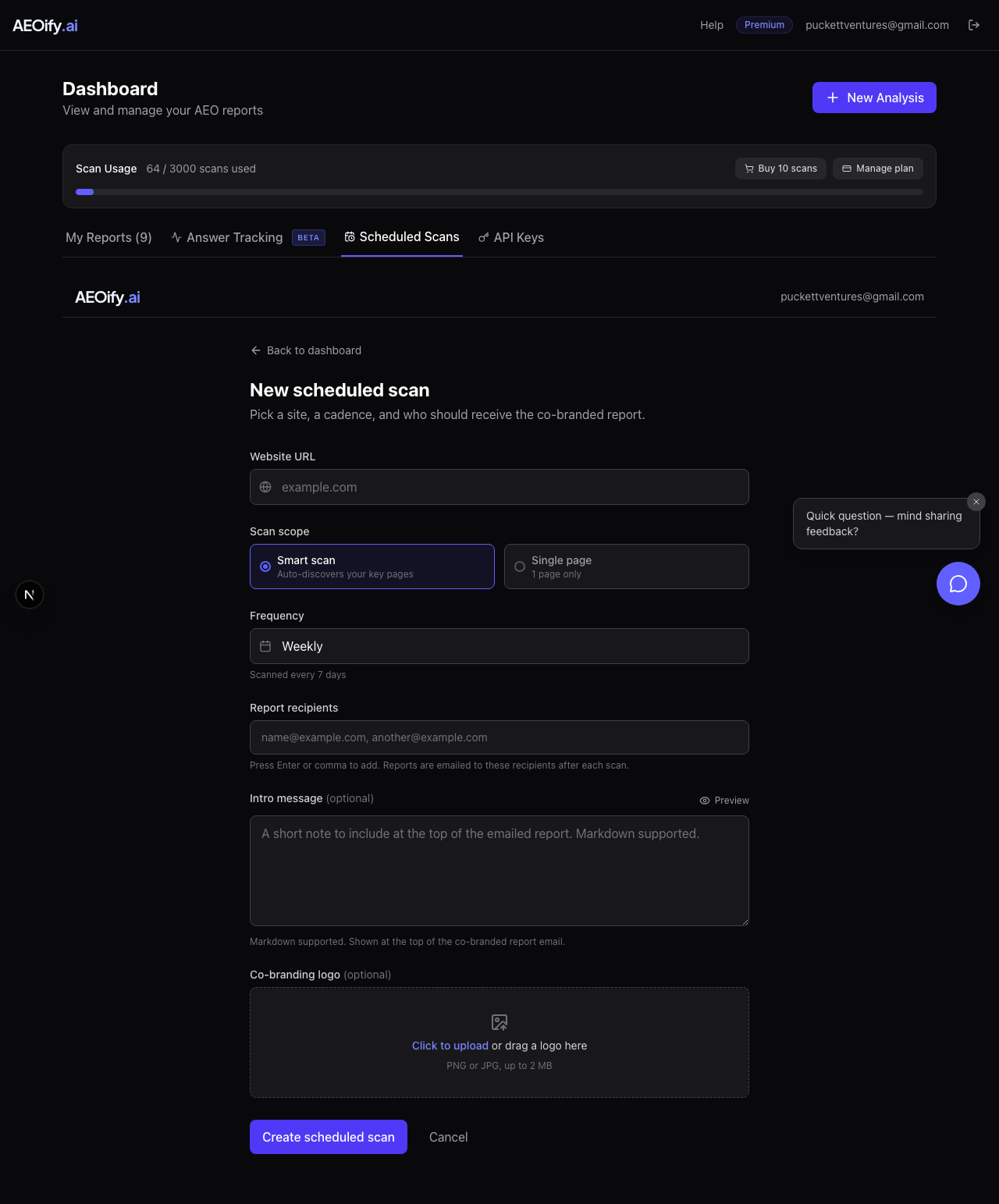
On the form you can set:
- URL: The site you want re-scanned on a recurring basis.
- Cadence: How often the scan runs — Daily, Weekly, or Monthly.
- Recipients: Email addresses that should receive the report after each scan. Type addresses separated by commas; each valid address becomes a chip you can remove individually.
- Intro message (optional): A short markdown message added to the top of the report email — a good place for a note to your client or team.
- Co-branding logo (optional): Upload a logo and the report email is sent co-branded with it, alongside AEOify branding.
Each scheduled scan uses one scan from your plan's allocation every time it runs, just like a manual rescan.
Scheduling a specific multi-page report
If you have a finished report covering a particular set of pages, you can schedule a re-scan of that exact page set.
- Open the finished report.
- In the Recommendations header, click the Schedule button.
- Set the cadence, recipients, intro message, and co-branding logo as above.
Each run regenerates the same set of pages from the original report, so the results stay comparable scan over scan.
Managing your schedules
The Scheduled Scans tab lists every schedule you have created. For each one you can:
- Pause / resume: Temporarily stop a schedule, then resume it whenever you are ready.
- Run now: Trigger a scan immediately without waiting for the next scheduled run.
- Edit: Change the cadence, recipients, intro message, or co-branding logo.
- Delete: Remove a schedule permanently.
What recipients receive
After each scheduled scan completes, every recipient receives an email containing the finished report. If you added an intro message it appears at the top, and if you uploaded a logo the email is co-branded with it. Recipients do not need an AEOify account to view the report.
- Do scheduled scans count against my scan limit?
- Yes. Each run of a scheduled scan uses one scan from your plan's allocation, the same as a manual rescan.
- Can I change recipients after creating a schedule?
- Yes. Click Edit on the schedule to update the recipient list, cadence, intro message, or co-branding logo at any time.
- What happens if I pause a schedule?
- No scans run while it is paused. Resume it whenever you want and the recurring cadence picks back up.
- Why don't I see the schedule form?
- Scheduled scans are a Premium feature. If you are not on a Premium plan, the Scheduled Scans tab shows an Upgrade to Premium card. See choosing a plan.