Reading your AEO report
Learn how to navigate your AEO report, understand recommendations, and prioritize fixes.
What does an AEO report look like?
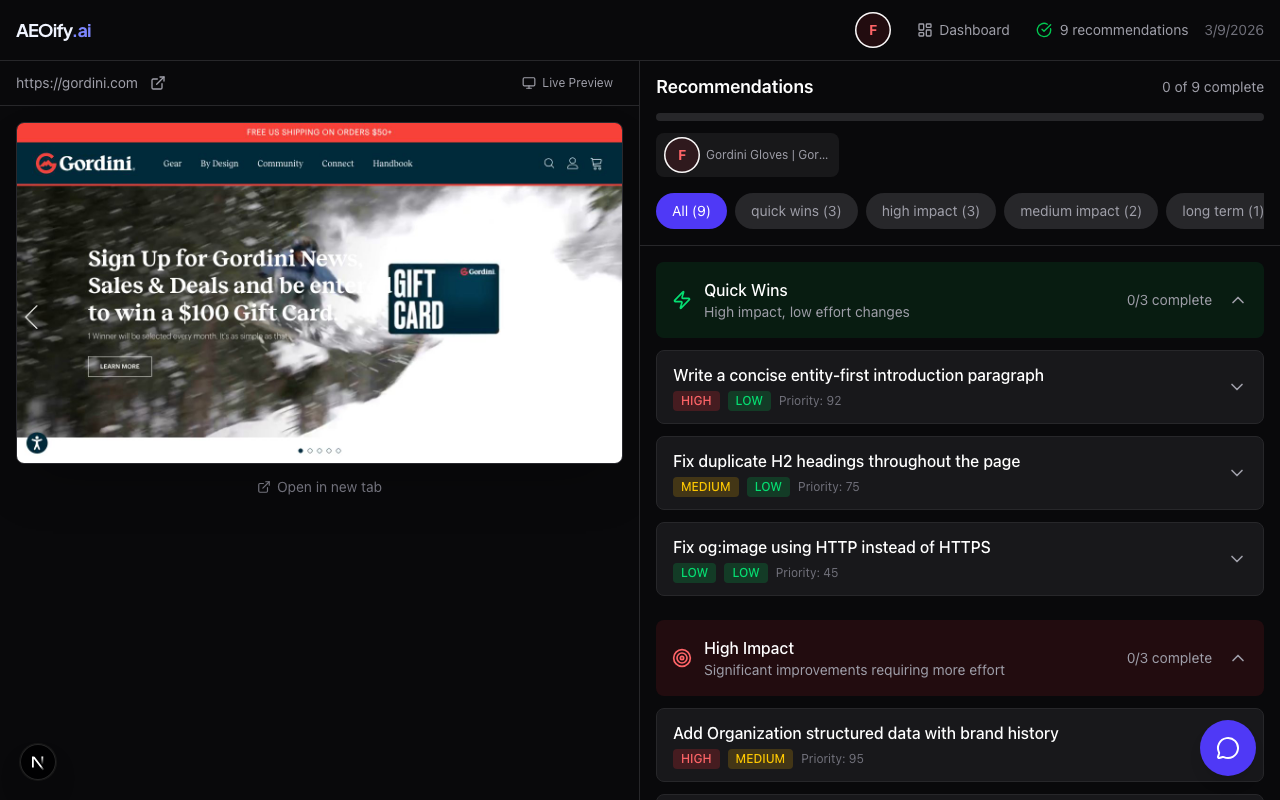
Your AEO report shows a split-screen view: your site on one side and actionable recommendations on the other. Recommendations are sorted by impact so you always know what to work on first.
Report layout
The report has two main panels:
- Site preview (left): A live view of your site as it appeared during analysis. You can scroll through the page to see exactly what was evaluated.
- Recommendations (right): A categorized list of improvements, each with a title, description, priority level, the points it is worth, action steps, and code snippets where applicable. Below the list, a What's working section shows the checks your page already passes.
Recommendation cards
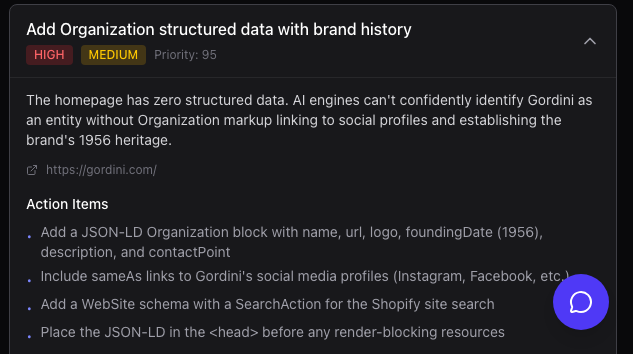
Each recommendation card includes:
- Title: A short summary of the issue
- Category: Quick win, high impact, medium impact, or long-term (see recommendation categories)
- Points (
+N): What the fix is worth — the points it would add to the page's score by resolving the underlying check. Within each category, the biggest-value fixes appear first. - Description: What the issue is and why it matters
- Action steps: Specific instructions for fixing the issue
- Code snippets: Where a fix involves markup, the card shows your current code alongside the recommended version, so you can see exactly what to change
Reading priority
Start from the top. Recommendations are sorted so the highest-impact, lowest-effort items appear first. Quick wins at the top of the list can often be fixed in minutes. See recommendation categories for how categories are defined.
What's working
Below your recommendations, a collapsed What's working section lists the checks your page already passes, each with the points it has secured (for example, 5/5). Expand it to see what is already strong — a quick way to confirm what not to touch.
Multiple pages
If your scan covered multiple pages, you can switch between them using the page badges to see page-specific recommendations. Pages can be auto-discovered during a smart scan or manually added using the "+ Add page" button in the badge row. Some recommendations may appear on multiple pages if the same issue is present across your site.
- Can I export my report?
- You can share your report via a unique link. See sharing reports for details.
- How often should I review my report?
- After making fixes, rescan your site to see updated recommendations. See rescanning your site.