Rescan after making changes
Rescan your site after implementing fixes to see updated recommendations and track your AEO progress.
When to rescan
Rescan your site after you have implemented fixes from your previous report. The new scan will show which issues are resolved and surface any new recommendations based on current best practices.
How to rescan
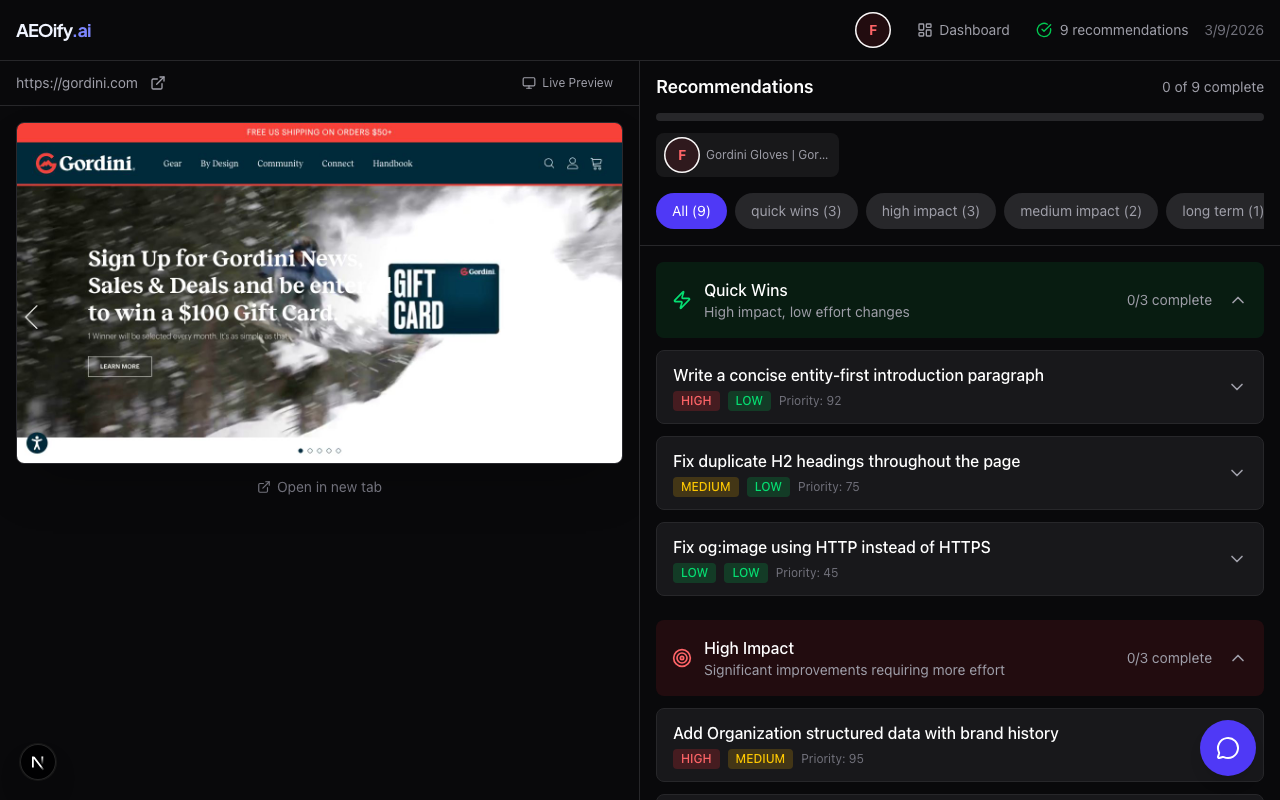
There are two ways to start a new scan:
- From your report: Click the Rescan button in the report header. This starts a new analysis of the same URL.
- From your dashboard: Click New Analysis and enter the same URL. This creates a fresh report.
Both methods use one scan from your monthly allocation or scan credits.
What changes between scans
Each scan is independent. AEOify researches current best practices before every analysis, so your recommendations may change even if you have not modified your site. Fixed issues will no longer appear, and new best practices may generate new recommendations.
Tracking progress
Compare your current report with previous ones to see which issues you have resolved. Your dashboard shows all past reports for quick reference.
Scan costs
Each rescan counts as one scan against your plan's monthly limit. If you have exhausted your monthly scans, you can purchase scan credits for additional analyses.
- How soon after making changes should I rescan?
- Rescan as soon as your changes are deployed and live. AEOify analyzes the live version of your site.
- Will a rescan show the same recommendations?
- Only if the same issues are still present. Fixed issues are removed, and new best practices may add new recommendations.